Step 1: First head onto www.speedtest.net
You should be greeted with a screen with a Begin button on it like this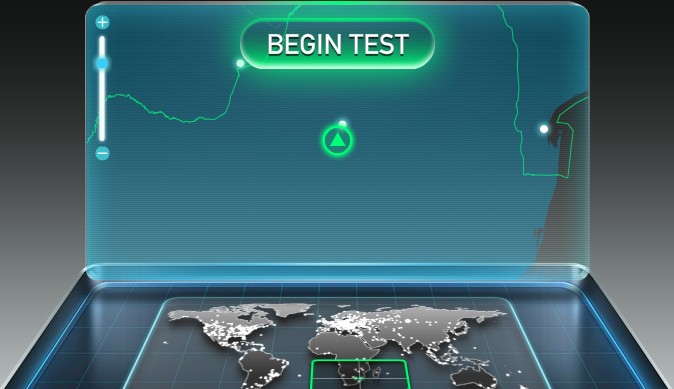
Step 2: Click on the Begin Test button
Your screen should turn to this
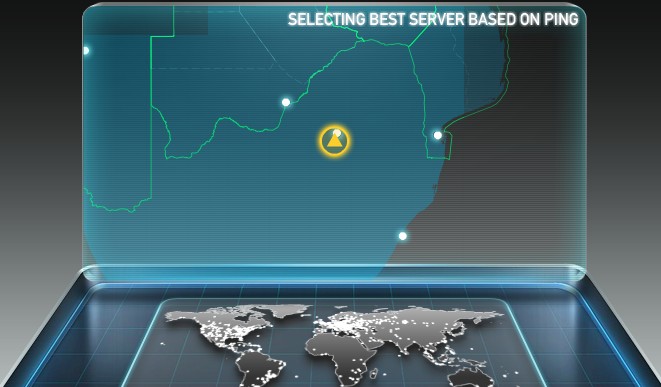
and then this

Step 4: After the whole process completes the web application would have tested your download and upload speeds and given you a screen similar to the one below.

How do you interpret the results?
Speedtest.net provides you with 3 fields of information:
- Ping – This measurement tells how long it takes a “packet” (one store of transportable data) to travel from your computer to a server (another computer on the Internet) and back.
- Download Speed – is how fast data is retrieved by your computer.
- Upload Speed – is how fast data is sent from your computer.
The Technical:
Ping is given in milliseconds. Download and uploaded speed are provided in Mbps (Mega bits per second) NOT MBps (Mega bytes per second) – there is a big difference. Remember small b represents bits and Uppercase B represents bytes.
[For those that would like to skip this explanation, I have provided a link to a bandwidth calculator below, which will do the conversion for you]
1 bit is the smallest store of data on a computer and can only store a ‘1’ or ‘0’. You need 8 bits to give you enough space to store a byte of data. Therefore to convert bit speed into byte speed we need to divide the Mbps rate given by 8. In our example:
5.01 Mbps = 5.01 * 1,000,000 bps (bits per second)
5010000 bps (bits per second) / 8 = 626250 bytes per second
To convert bytes into Kilobytes we divide 626250 / 1000 = 626.25 KBps (Kilobytes per second)
To convert Kilobytes into Megabytes we divide 626.25 / 1000 again = 0.63 MBps (Mega Bytes per second) approx.
For more information on data rate units you can visit the wikipedia page here.
If you would like to rather use a bandwidth calculator to do the work for you, you can find one here.
Any ideas/ comments / suggestions or corrections, please advise in the comments below or email me.